Contact support
Where to find the assistance channel built into your host workspace, what goes to the YStay team, how the reply comes back, who on your team sees a request, and how long exchanges are kept.
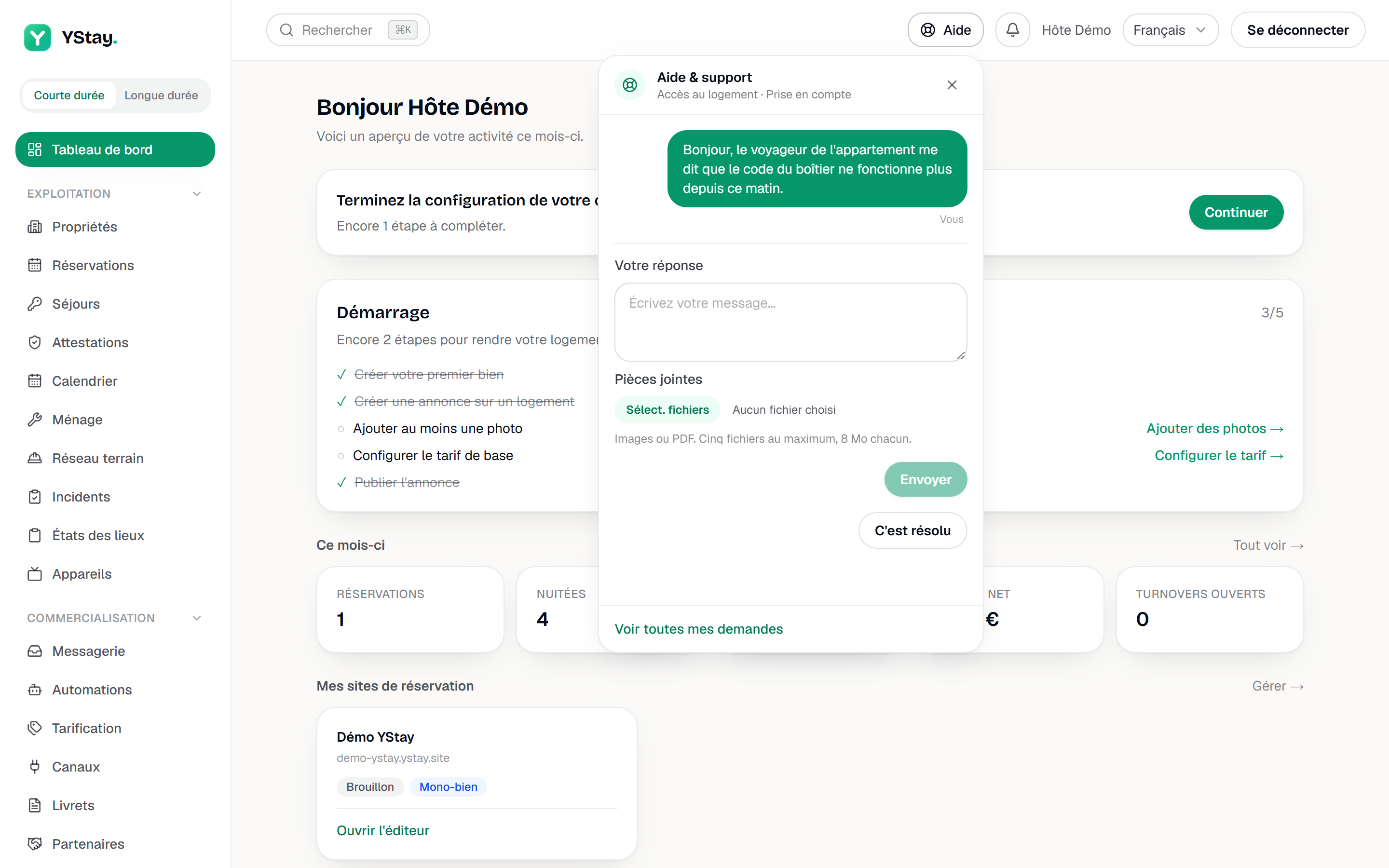
YStay opens an assistance channel built directly into your host workspace: no need to look up a separate email address, and two entry points lead there. The Help button, top right of the header next to the notification bell (a life-buoy icon, with its label on larger screens), opens the most recent open request of your account — yours or a team member's — or, if there is none, the form for a new one, without leaving the page you are on. The Support link, at the very bottom of the main menu next to your account name and marked with the same life-buoy icon, still leads to the page listing all your requests.
Once open, the "Help & support" panel lets you read that request and reply to it, or, if none is open, fill in the form directly. At the bottom of the panel, the See all my requests link leads to that same page.

What a request can cover
When opening a request, a category is chosen among:
- Access — lock, entry code, an issue opening a door.
- Payment — payouts, billing, deposits.
- Reservation — a specific booking.
- Check-in / check-out — arrival, departure, key handover.
- My account — profile, company, connections.
- Compliance — a rule or a regulatory obligation.
- Bug — abnormal platform behaviour (web, mobile, or TV).
- Report — content or behaviour to flag.
- Other — everything else.
Deleting your account is not requested through this form: it is requested from the Account page (see the Your data and your account guide).
Whatever category is chosen, a request opened from your host workspace goes to the YStay team, never to another member of your account: this channel is not an internal messaging tool.
A first reply from an AI assistant
When this feature is turned on by YStay, the first reply to a request can be written by an artificial intelligence, signed "YStay AI assistant", and shown immediately in the conversation thread: a banner announces it as soon as the request opens.
The assistant relies on the guides in this documentation and cites its source under its reply ("Source:"). It never shares an access code, a password, or personal information, does not act on your account, and makes no decisions.
For certain requests — account deletion, compliance, reporting — and whenever the assistant does not know how to reply, the request is passed directly to a member of the YStay team: "Your request has been passed on to a member of the YStay team."
The "Talk to a human" button is available at any time, and the "It's resolved" button closes the request. Without a reply from you for seven days after a reply, the request closes automatically; you can then open a new one.
If the assistant is not available, or if the limit of automatic replies has been reached, a member of the team replies to you: "The AI assistant is not available right now. A member of the YStay team will reply to you." or "The limit of automatic replies has been reached. A member of the YStay team will reply to you."
As with a human reply, no response time is promised.
Asking a question from the documentation
The A question? button sits at the bottom right of every page of this documentation (icon only on small screens). It opens the YStay AI assistant, which answers from the guides on this site and cites its sources under each answer. No account is needed, and nothing is stored before your first message.
This assistant does not know your account: for a question about your bookings, your payments or your team, use the Support in your YStay workspace link shown in the panel, which leads to the assistance channel described above. It does not handle account deletion or content reports either: it points you to the pages meant for that. The Email the team link remains available if you do not have a YStay workspace.
This conversation is not a channel to the YStay team: when the feature is turned off, or when the day's number of automatic answers has been reached, the panel says so and only offers these two links.
Attaching a file
A message — when opening a request or in a reply — can carry up to five attachments, images or PDF, 8 MB each at most, via the Add a file button.
Like the rest of a request, these files are never public: they can only be reached from your authenticated workspace, never through a link open to anyone. They are erased together with the request, following the retention periods described below.
How the reply comes back
A reply written by the AI assistant shows up instantly in the request's thread. A reply from the YStay team, on the other hand, arrives through two channels at once: a notification inside your host workspace, and an email in your account's language. Both lead back to the same request, inside the app.
If YStay is waiting on a reply from you
When the YStay team needs more information from you to move a request forward and does not receive a reply, a single reminder is sent — never more than one. If the issue has resolved itself on your side in the meantime, that reminder can be ignored with no consequence: the request is not chased a second time.
As with the first reply, no stated deadline drives this reminder: YStay does not display any time-based commitment.
If support asks you to confirm an action
To settle a request, the YStay team can prepare an action that touches your money. Such an action is never carried out without you: today, this is the case for a deposit release, which lets go of the security deposit held on a guest's card.
When support prepares one, the account owner receives an email “An action is waiting for your confirmation”, and a notification appears in the bell of your host workspace — yours and that of the team members who have access to the account's finances (see “Who can confirm” below), not that of the other members. The View the request button leads to the support page, where the Waiting for your confirmation box shows at the top of the page. Each action is listed there with its type (Deposit release), its amount and its date, and two buttons:
- Confirm releases the deposit: the amount held on the guest's card is let go.
- Decline changes nothing: the deposit stays held, and your refusal is recorded as such.
The box only shows when an action is waiting for you. If the deposit has meanwhile been released or captured some other way, the action disappears on its own: there is nothing left to decide. If someone on your team has already decided, the message “This action has already been settled.” is shown, and nothing is carried out a second time.
Two other support actions are carried out without waiting for your confirmation: extending your trial period, and reissuing the access code of a guest who is locked out. In that second case, a new code is sent to the guest and the old one is revoked; the YStay team never sees that code.
Who on your team sees a request
- The owner and a manager see every request opened on the account, whoever opened it.
- A staff member sees them too, by default.
- Someone with read-only access only sees the requests they opened themselves.
How long exchanges are kept
The content of a resolved request is kept for 24 months after resolution, then erased: the text of the messages disappears, while the request itself stays as a trace that an exchange took place. Attachments follow the same rule as the text of the messages: they disappear along with it.
The audit trail proving who did what and when has its own retention period: 36 months. It therefore does not follow the 24-month window that applies to the content — a request can have had its text erased while the trace of how it was handled is still there.
Next up
- Set up your account and integrations — the rest of the My account page.
- Invite your team and set their roles — who sees what, by role.
- Team & account — the other guides in this section.
Updated on